
One Setting That Makes Hackers Give Up Instantly
One Setting That Makes Hackers Give Up Instantly
After advising C-suite leaders and testing breach scenarios for over a decade, I can say this with confidence: every time I see hardware-backed, phishing-resistant authentication deployed correctly, the risk of account takeover collapses. It’s the single most effective setting you can flip on today.
What Is This Magic Setting?
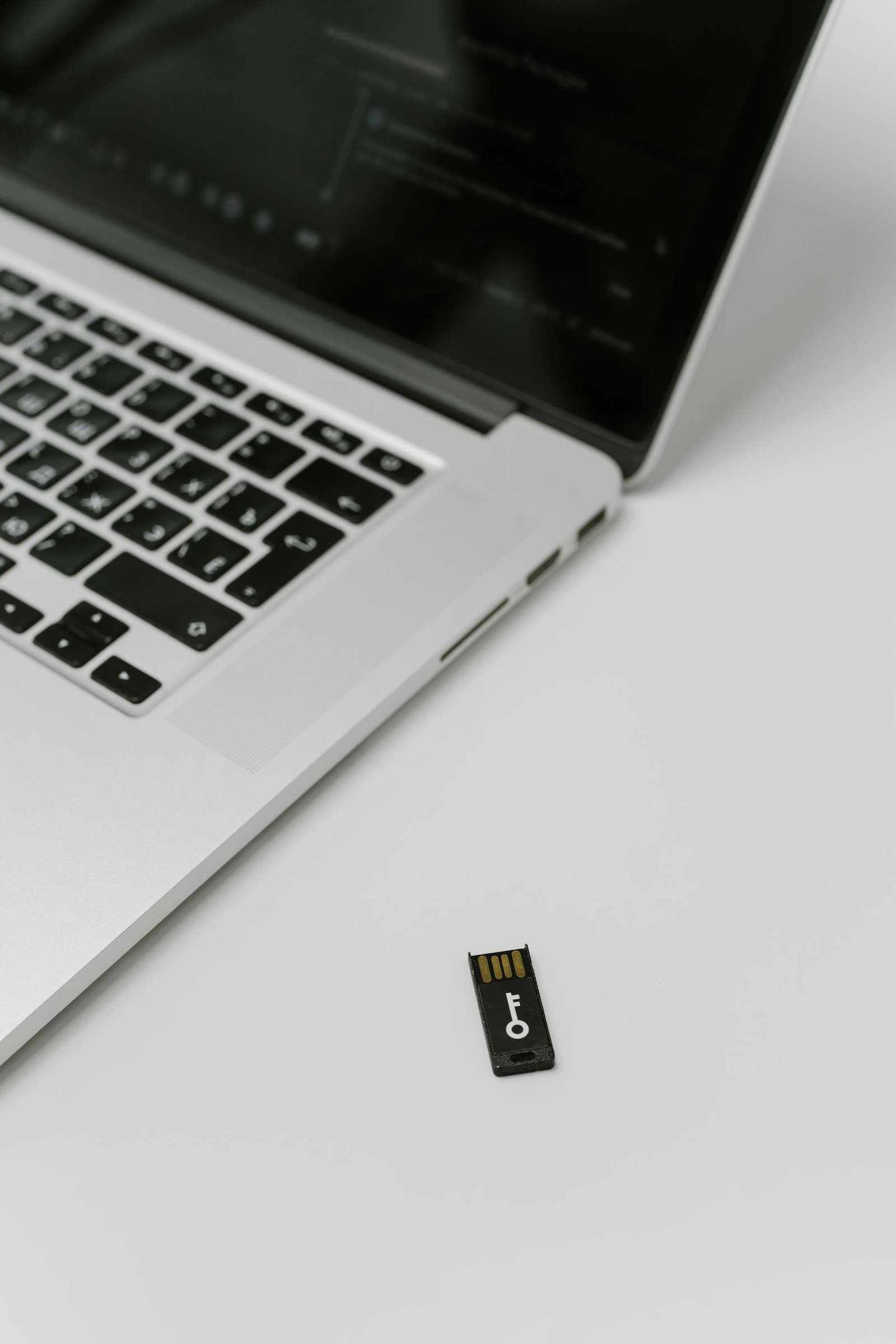
The setting isn’t a checkbox labeled “hack proof.” It’s the decision to use phishing-resistant multi-factor authentication — namely, hardware security keys or platform-backed credentials that use standards like FIDO2 / WebAuthn. In plain English: instead of relying on SMS codes, authenticator app codes, or email links, you require a cryptographic key that proves the user is who they say they are — and that the login is happening from the legitimate site or app.
This is not “more complicated” security. It’s the modern equivalent of installing reinforced locks that don’t accept copied keys.
Why Hackers Give Up When They See It
- No more stolen-password attacks: Even if a password is phished or leaked, the attacker can’t complete login without the private key stored in a hardware device or in the user’s secure platform authenticator.
- Phishing stops working: FIDO2 protects against fake websites because the browser or app negotiates a cryptographic challenge bound to the real origin — a phishing page can’t reproduce that.
- SIM-swap and SMS fraud are useless: SMS codes are intercepted and SIMs are swapped regularly; hardware keys aren’t routed through carriers.
- Mass automated attacks fail: Credential stuffing and automated bots expect passwords + code flows. A physical key breaks that automation model.
Who Should Turn This On
Short answer: everyone who cares about security. Long answer:
- Individuals: Email, banking, social media, crypto accounts—enable hardware or platform keys where supported.
- Small businesses: Require phishing-resistant MFA for administrators, finance, HR, and anyone with vendor payment permissions.
- Enterprises: Enforce FIDO2 via conditional access policies for privileged roles and high-risk sign-ins.
How to Implement It — Quick Guide
Below are practical steps for individual users and IT teams. I’ve written this the way I show executives in a 10-minute briefing: fast, friction-minimal, and secure.
For Individuals (10–20 minutes)
- Buy a reputable security key: Look for FIDO2-compliant keys from known vendors (USB-A/USB-C and Bluetooth/NFC variants exist). Like Yubico or Thetis. If you prefer less hardware, modern phones and laptops often support platform authenticators (Windows Hello, Apple Touch ID / Face ID via Safari).
- Register the key with your accounts: Visit account security settings (Google, Microsoft, Twitter/X, Facebook, major banks, crypto exchanges) and add the security key as a primary or additional MFA method.
- Make backups: Register at least one secondary key or platform credential and store a backup key in a secure place (safe, safety deposit box).
- Remove weaker options where supported: If the service allows, disable SMS one-time passwords or make them secondary, not primary.
- Test account recovery: Understand the service’s recovery flow — ensure your backup key or recovery codes are available before you need them.
For Teams and IT (Policy + Deployment)
- Start with admins and high-risk roles: Make FIDO2 mandatory for accounts that manage payroll, DNS, cloud admin consoles, and customer data.
- Use conditional access: Require phishing-resistant MFA for new device logins, remote access, and third-party integrations.
- Provide employee kits: Issue hardware keys to staff, or document how to enroll platform authenticators securely.
- Train & communicate: Run a 15-minute session on why SMS is weak, how keys work, and how to store backup keys safely.
- Plan recovery: Implement an incident process for lost keys (helpdesk verification, temporary access controls, revocation flows).
- Monitor & enforce: Log MFA events and look for abnormal bypass attempts; revoke access quickly when an account is compromised.
Deploying With Minimal Friction
Conventional wisdom says ‘security equals friction.’ That’s outdated. Platform authenticators (your phone or laptop) make passwordless flows smooth. The real trick is combining convenience with a fallback plan:
- Use platform keys where possible for daily logins; keep a hardware key for travel and as a backup.
- Automate provisioning with MDM (mobile device management) to enroll platform credentials for managed devices.
- Make backup enrollment painless: During setup, force-enroll a secondary method and surface recovery codes immediately.
Myths and Objections — Answered
- “I’d lose the key.” Register at least two authenticators and keep a backup in a secure place. Losing a single key is manageable; losing access to all authenticators is preventable.
- “It’s expensive.” Basic keys cost under the price of a single incident response engagement; the ROI is immediate when you avoid a breach.
- “Not all services support it.” Start with your most important accounts: email, cloud storage, financials. For unsupported services, use strong app MFA + password manager until they add support.
Recovery Planning — Don’t Skip This
Security keys raise the bar, but recovery planning avoids lockouts and social engineering during account recovery:
- Store recovery codes in an encrypted password manager, and keep a printed copy in a safe.
- Designate a trusted emergency contact with documented, limited powers and a clear verification process.
- For organizations: maintain an auditable key inventory and short-lived emergency access tokens that require multi-person authorization.
Real Results: What I’ve Seen in the Field
When a finance team I worked with switched to FIDO2 for payment approvals, wire-fraud attempts dropped to zero within weeks. Attackers shifted tactics—because they could no longer automate takeover or phish credentials reliably. That’s the moment an attacker “gives up.” It’s the moment you win without ever fighting a break-in.
How to Start — Your 15-Minute Action Plan
- Buy one reputable security key (or check platform authenticator support on your devices).
- Enable it on your primary email and cloud accounts.
- Register a backup authenticator and save recovery codes securely.
- Remove SMS as a primary MFA where possible.
💬 Try this now: Go to your primary email account and look for “Security” → “2-Step Verification” or “Security keys.” Add a key or platform authenticator. Come back and tell me which account you secured first — I’ll read every reply.
FAQ
Can I use my phone as a security key?
Yes. Many modern phones support platform authenticators (Touch ID/Face ID on Apple devices; Android’s built-in credentials). They’re convenient and phishing-resistant when used via WebAuthn-enabled sites.
What if a service doesn’t support security keys?
Prioritize high-value accounts first and use strong authenticator apps + password managers for other services. Push vendors to adopt WebAuthn by asking support teams—demand accelerates adoption.
Are hardware keys vulnerable if stolen?
A stolen key is risky only if the attacker also has your unlocked device or can pass local PIN/biometric checks. That’s why backups, device protection, and revocation processes matter.